Changing the Login Password (Step-by-Step Guide)
1)
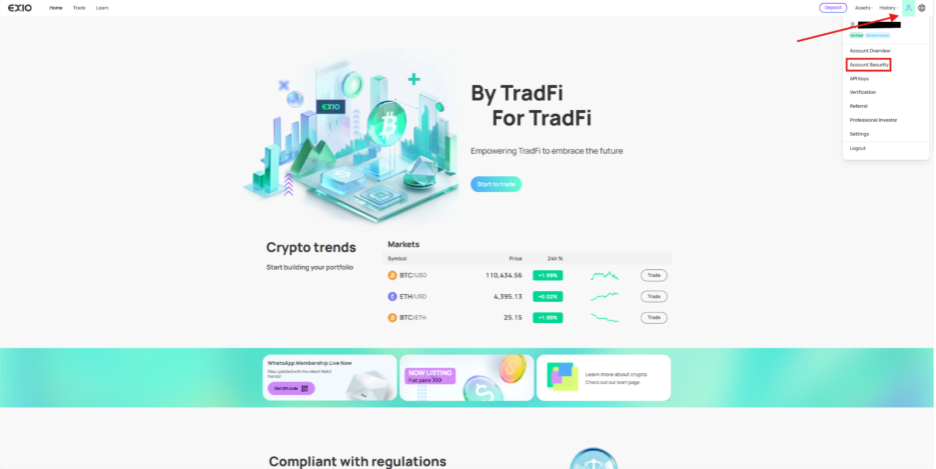
Log in to your EX.IO account, hover over the icon at the top right, and select “Account Security”.
2)
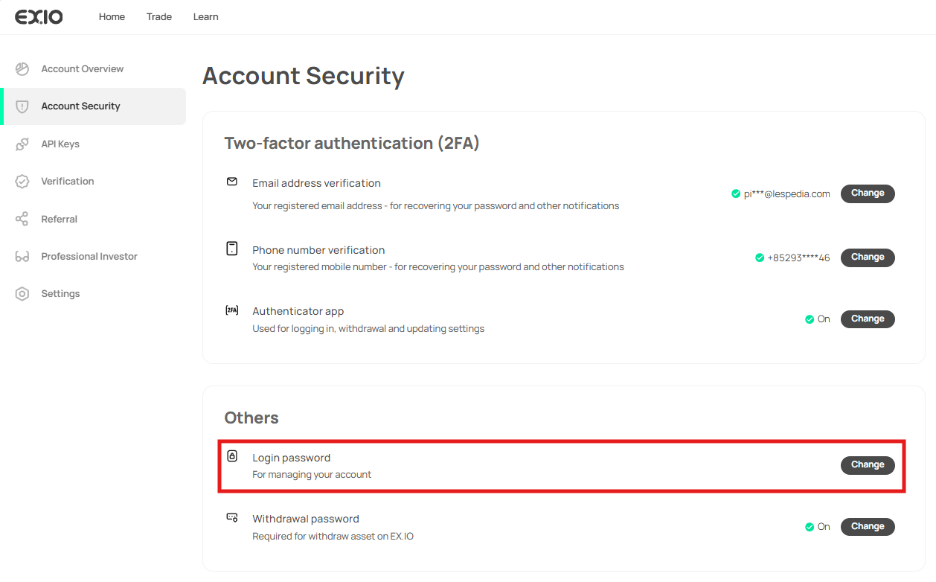
On the account security page, click “Change” next to “Login password”.
3)
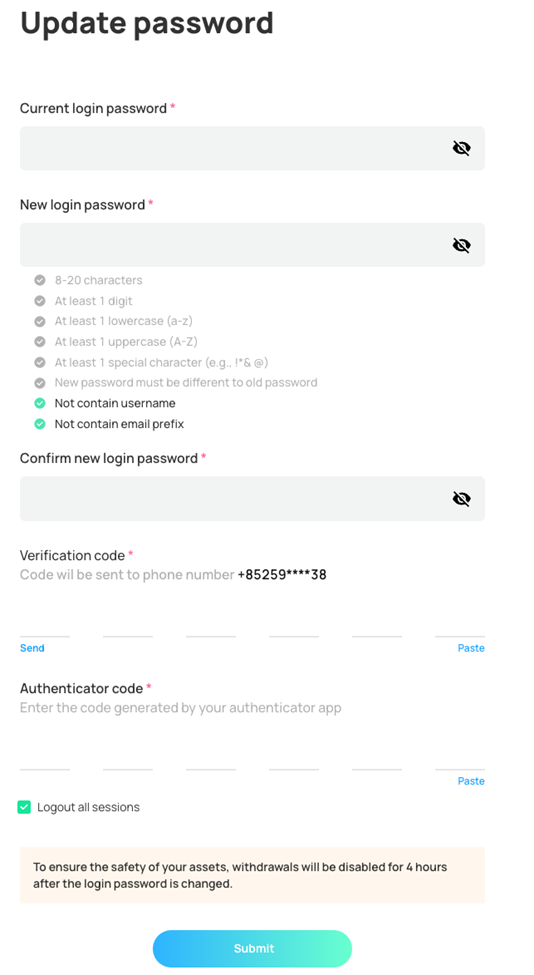
After clicking “Change” you will be directed to the “Update password” page.
4)
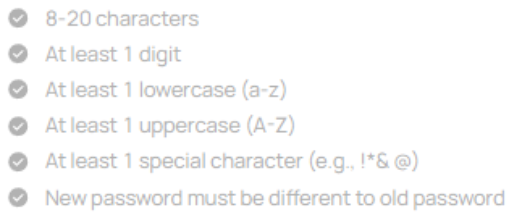
Create and confirm a new login password that complies with EX.IO’s password requirements.
5)
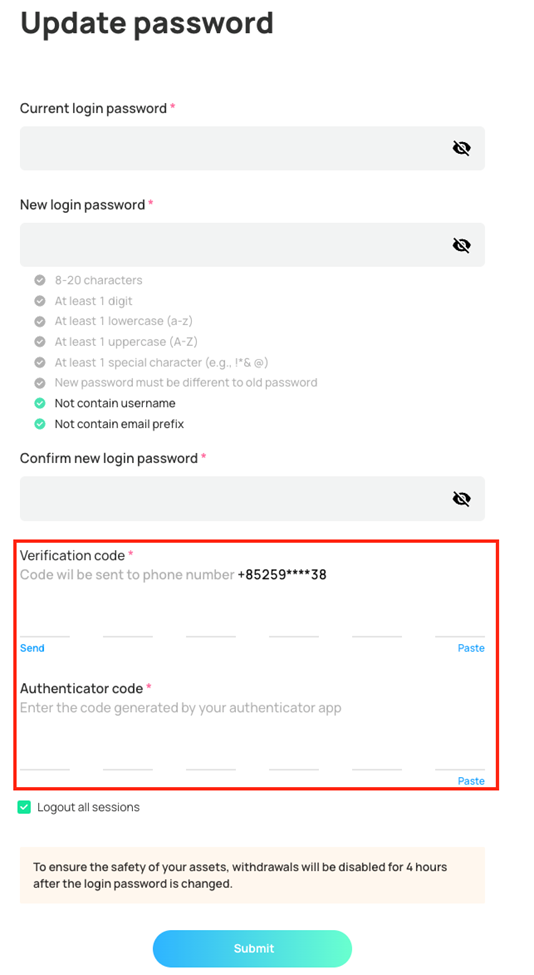
Verify your account ownership by entering your SMS verification code and 2FA authenticator code.
6)
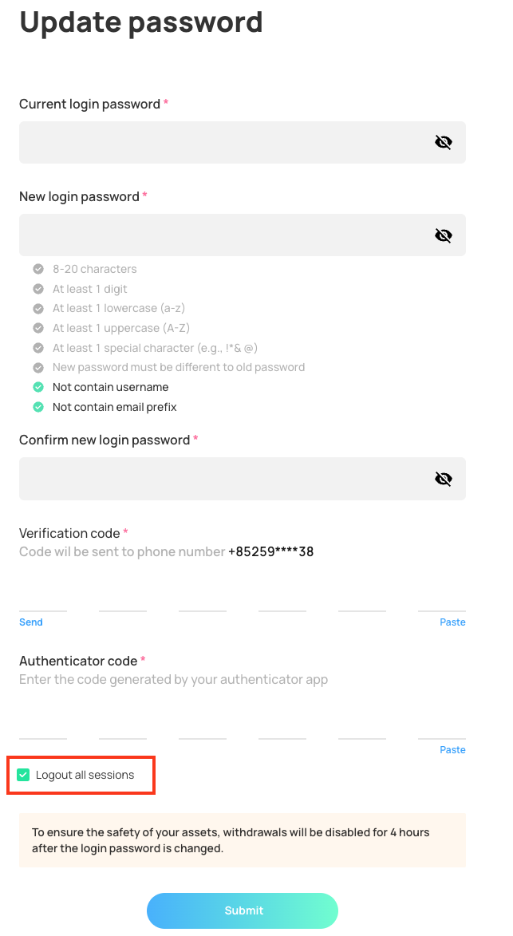
You have the option to log out of all active sessions on your account, which is highly recommended.
7)
Important: After changing your account’s login password, you will be unable to withdraw assets for 4 hours.